Posted by bocahblogger

Why You Must Use twitter

The short answer: Twitter can enable osmotic communication in virtual teams, and avoid social isolation. Twitter, or any Twitter-style equivalent, is an endless stream of short messages created by millions of people around the globe. These messages can contain every type of information: a weather condition, the content of a fridge, a stock tip in response to someone asking; if you can fit the message in 140 characters, you can throw it in the Twitter information river.

Posted by bocahblogger

Why You Must Use RSS

If you're resisting RSS, that's understandable. Only a minority of Web users have adopted it, and that'll probably be true for some time. But it's the thought leaders, the proverbial creative class (dreadful term), that are using it ... and if that's the kind of organization you have or the kind of career you're building, it's time to get over that resistance. If You're a Nonprofit Manager Right Now and You're not Using RSS, You're Falling Behind You're not getting information - about your cause, about your people, about your profession - efficiently enough, which means you're not getting enough information, period.

Thursday, June 4, 2009

Why You Must Use twitter

The short answer: Twitter can enable osmotic communication in virtual teams, and avoid social isolation.

Twitter, or any Twitter-style equivalent, is an endless stream of short messages created by millions of people around the globe. These messages can contain every type of information: a weather condition, the content of a fridge, a stock tip in response to someone asking; if you can fit the message in 140 characters, you can throw it in the Twitter information river.

twitterstream 1024x563 Why You Should Use Twitter Style Communication In Your Project

Sender

You can add a message into the stream for no particular receiver, or you can address your information package to a particular person. If you want to sent me a message on Twitter, you do this by starting the 140 characters with @projectshrink.

Receiver

If you are plugged into Twitter you can try to follow every bit of information that flows by. Within 10 seconds you will drown by the sheer amount of bits. Twitter provides two ways to slice and dice the flow to get the information you might consider relevant. By person and by content.

  • Person: you can follow every Twitter user you want. By selecting a person his or her Tweets (messages) will be shown to you.
  • Content: you can create searches with keywords, and Twitter will provide you with a stream of all messages containing this keyword.

Real Time Small Messages

The most prominent characteristics of Twitter are “real time” and “small messages”. That is why it feels like “conversations in the background”.

If you run Twitter in the background (using tools like Tweetdeck) it is almost like listening to people talking in the background. Sometimes something catches you attention and you mentally zoom in.

It provides a virtual connection with the people you are following. Where ever you are with your laptop or iPhone, you get subtle impressions of what “the others” are up to. It creates a sense of “group”.

twitter2 Why You Should Use Twitter Style Communication In Your Project

Osmotic Communication

Alistair Cockburn introduced in his book “Agile Software Development” the concept of osmotic communication - indirect information transfer through overhearing conversations or simply noticing things happening around you. To me personally it happens very often that a talk between people in the same room morphs from murmur in the background to a conversation you find yourself all of a sudden eavesdropping on.

Osmotic communication is a very important type of communication. It provides “missing” information, you don’t know you are missing. It provides sources you normally would not think about. It provides information in a context you haven’t considered.

The “triggers” for zooming in to chatter on the background are patterns. With Twitter we can use keywords popping up in a message as a trigger. If someone is talking about your project, mentioning it by its name, you will zoom in.

Sense of Group

The project landscape is turning mobile, multi-cultural, 24×7, highly distributed and in ever flux. The group you are working with can be scattered all over the world, in every time zone, but also just in the building across the street. Projects are allocated cutting almost every boundary in existence. This working environment increases the risk of isolation. Even in a room full of people one can have a sense of not belonging to any group. Feeling left out.

People need to feel part of a group. In the end we are social animals. Luckily for us, Twitter is social media. By following the people you want to form a group with, want to create a social connection with, you can have each other’s “presence” in the background at all time. As with all forms of communication, to create a real connection you need to participate, have a genuine two-way conversation.

Read rest of entry

Why You Must Use RSS

It's come to the point where nonprofit staff who aren't using RSS aren't really doing their entire job.

I know, I know - you don't believe me, and you don't care.

You already use the Internet, so why take time you don't have to learn some new way to get the information you already get? Especially when the first thing an evangelist says about RSS is that it's actually like 11 different data formats and nobody can even agree what the acronym means?

I know because I've been there. It was about 1995, and the .sig files people used on Usenet started saying "Visit my page on the World Wide Web!" I ignored it for months, because who needs some crummy new platform when I've got all the text-based newsgroups goodness my heart could ever desire?

The answer, then as now, is that it will totally change the way you relate to information. It's like being myopic and then putting on glasses.

If you're resisting RSS, that's understandable. Only a minority of Web users have adopted it, and that'll probably be true for some time. But it's the thought leaders, the proverbial creative class (dreadful term), that are using it ... and if that's the kind of organization you have or the kind of career you're building, it's time to get over that resistance.

If You're a Nonprofit Manager Right Now and You're not Using RSS, You're Falling Behind

You're not getting information - about your cause, about your people, about your profession - efficiently enough, which means you're not getting enough information, period.

And someone else is getting that information, or will be soon.

They'll know when someone writes about your issue or blogs about your cause or has something to say about your organization, and know it without refreshing dozens of links and scouring dozens of mailing lists so their hands are free for the other hundred things they have to do.

If they know it, you'd better know it too.

Luckily, it's easy as pie.

Ready? It might seem daunting, but RSS (used interchangeably here with the word "feed") is really pretty simple to use ... sort of like adding Tivo to your Web experience. You're about to go from zero to RSS expert in three easy steps.

1. Get a Feed Aggregator

You need an email application to read email, and you need a feed aggregator to read RSS. (Note: Newer generations of Web browsers actually have RSS-reading capabilities baked in. For tracking large numbers of feeds, it's still more efficient to use an aggregator ... and to the extent the two drive towards convergence, everything else in this primer will hold for either.) Like mail programs, some are Web-based, and some are locally installed. If you're starting, don't get bogged down in feature sets as the essential elements are pretty generic; just pick one and go.

The old Web-based standby is Bloglines. The new hotness is Google Reader. I personally dig SharpReader. There are lots of others.

The end result for almost any option is probably going to look something like a mail reader: a list of feeds subscribed to, a list of headlines for a particular feed (or folder of feeds) you've selected, and the text of a particular story you've selected from the headlines.

And this is where the payoff is.

Your list of feeds will highlight themselves when there's new material in them, and your headlines present scanable registers of material into which you can quickly drill without maneuvering around banners, clicking through subsections, or losing track when something interrupts you. Now, instead of a hundred different Web sites with different navigations and update schedules, you've got everything in one place.

2. Find Some Feeds

Congratulations! You've done the hard part. Now you just need to start locating the feeds for things you want to track.

It might take some getting used to, but once you start looking, they're everywhere ... although often in disguise. Increasingly, the icon above is becoming a standard RSS symbol - and looks sharp; you'll often see it in the browser bar, where it's a clickable link. For instance:

Instead or as well, you might find feeds linked as plain text with a title like "subscribe" or "syndicate," or as clouds of linklets like this:

That's a confusing hash of ingredients, but like casserole, it's all ending up in the same place. The branded links (Bloglines, NewsGator, My Yahoo) allow one-click selection if you're using one of the associated services, but you'll undoubtedly want to subscribe to someone - like, say, us - that doesn't trifle with that sort of thing or doesn't happen to support yours. Fortunately, the "long" way around is one whole additional click.

You don't need to care about the distinctions between RSS, Atom, XML, and the rest, any more than you need to care about the distinctions between an HTML page and a PHP page to browse the Web. Just click on one of the links so named - it won't look very nice, but don't worry; it's not meant to be read by you in this form - copy the URL, open your feed reader, select "Add" or "Subscribe", and paste in the URL.

3. Repeat Step 2 (Times 20, 50, or 500)

There's no need to use RSS if there's only one blog you read. The value is in culling information from all over the Internet, alerting you of updates, and allowing stories from multiple sources to be quickly scanned and sorted.

So now, you start adding. What to add?

All the Major Bloggers in Your Sector

Whoever you normally read that writes about your issue or your line of work that's interesting, persuasive, or simply widely read.

As this pool grows with the blogosphere, just keep adding them to a common file. Keeping up with the daily output of 40 bloggers is a lot less daunting with RSS.

Whoever Is Blogging Against You

Opposition research made easy: Use the same process to keep tabs on the most influential voices opposing you.

Bloggers Who Write about Your Particular Line of Work

Networks of blogs - about, say, fundraising, or media work, or organizing - are a copious professional-development resource that are easy enough not to get to if you have to click a bookmark every day but an absolute trove when RSS is doing all the work for you.

Webzines in Your Sector

It doesn't have to be a blog to have a feed. Most publications that are more like traditional news outlets, now a feed of their own that updates when they publish - whether that's monthly or repeatedly throughout the day.

Everything pretty easy so far? Now, we get a little more interesting.

Persistent Web Searches on Keywords

Let's say you're doing work on health care and you want to know every time there's a news story about health care. A few years ago, you'd need to be a relentless human information aggregator. Today, it's a snap.

  • 1. Start with a site that channels news from all over, like Google News.
  • 2. Search on "health care."
  • 3. Click the RSS link. (Or Atom - remember, it all amounts to the same thing.)

Add to your feed reader.

Voila! Google lets you know every time it adds a new article with that term.

(More verbose descriptions of this procedure at NetSquared and The Bivings Report.)

And on Tags, and on...

The same trick can be employed with searches almost everywhere, and once you get the hang of it, it's an amazingly powerful way to keep a searchlight trained on the obscurest crannies of your cause.

You don't have to go to that level of detail to start. One or two basic searches on obvious keywords are like a whole new universe when you haven't been doing them. That might be all you need, or you might find yourself adding more over time.

But don't worry as you start about eventually having to drink all the RSS kool-aid on offer. There's a ridiculous amount of low-hanging fruit available at the most casual and readily comprehensible level of adoption.

All you have to do is take it. With RSS, 90 percent of success is just showing up.

Read rest of entry

why Facebook attacks are so easy

Facebook is the new playground for phishers. Why? The social networking site has made things relatively easy for computer criminals. So far, the consequences have been relatively mild -- mostly, some annoying emails. But if Facebook and other social networking sites don't get a handle on security issues soon, a serious outbreak could occur.

Behind every successful criminal computer hack a simple two-step process: gain trust, then exploit that trust with an attack. Computer criminals will tell you that gaining trust is the hard part. Consider a real-world parallel: Breaking into a bank is difficult. But if you befriend a guard, he’ll eventually let you walk right in through the front door.

That's why Facebook attacks are so easy, says Mary Landesman, senior researcher at computer security firm ScanSafe.

"Facebook users assume a level of trust they just should not assume when using the site," she said.

Phishing attacks have been popping up nearly every week on Facebook and other social sites like Twitter. Victims receive e-mails from friends with innocent-sounding messages, such as "click on this video." Those who are duped then surrender their login information on a rogue Web site, and then a criminal is off to the races with their identity.

People who would never fall for an old-fashioned phishing note are getting tripped up by Facebook phish for one simple reason: They trust the sender.

"People are pretty unguarded in the social networking environment," said Kevin Haley, director of Symantec Corp.'s security response team. "You figure you're surrounded by friends, so why have your guard up?"

Read rest of entry

Windows 7 sale October 22nd


We knew good and well the next iteration of Windows would be generally available this fall, but now we've a date to circle in our datebooks: October 22nd. Yep, the fourth Thursday in the tenth month of this year will mark the first date in which you -- the general consumer -- can purchase Win7, which gives you plenty of time to figure out which of the 94 variants will suit you best. Have fun!
Read rest of entry

Speed Up your PC now

It’s all fine and dandy when you have a brand new PC nested on your desktop that runs as smooth as a smoldering broadsword through a carton of butter, but if your PC’s as slow as a government employee, you know it’s time to do something about it. If you’re one of the rich folk who has money flowing out of every orifice in the body, by all means - buy a new PC (and write me a hefty cheque if you’re feeling extra generous); but if you’re like the majority of us and wish to juice your PC till its hair goes gray, we’ve got a couple of tips to keep your work-horse running as speedy as it possibly can

Tip 1: Clean Your PC

We can understand if someone might not wish to bathe for a while, but unlike humans, PCs need to be cleaned in order to run efficiently. This doesn’t mean that you should give it a bath of course. You should clean your PC’s innards every few months, to keep it dust free and unclogged. When dust accumulates on your processor and other fans, they start running sluggishly, cooling your PC less, causing all sorts of slowdowns and even crashes.

Just as a surgeon wouldn’t mess around or juggle with the organs of a sliced up patient, you need to take care while handling the insides of your PC. Make sure to touch any metallic part on the inner frame of your PC before you touch your motherboard or any delicate hardware, since the static discharge from your hand can fry your PC’s circuitry. Touching a metallic object on the inside helps get rid of any static charge your hand might have.

Once that’s done, you’re all set to clean your PC. To rid your graphic card and other easily removable components of dust, just plug them out of your mother board and gently blow into the fan. Don’t blow too hard though, else you’ll have dust in your eyes. You can use a piece of clean cotton cloth to rid your PC’s components off the dust that might have settled on the surface.

Just ensure that you’re gentle. If you’re lucky enough to find caned air at your local hardware store (it’s quite rare in India unfortunately), you can use this to blow air out of the hard to reach corners in your PC. Alternately, you can use the special attachments you get with modern-day vacuum cleaners that are meant for cleaning those hard-to-reach places inside your PC.

Tip 2: Keep your PC Light on Apps

It may sound trivia to some of you, but it’s a good habit to uninstall any applications you don’t use on your PC. If you let your PC clutter up with all the world’s apps, there are bound to be more than few that start a particular service or two that you wouldn’t normally require on your PC, or they might run some apps in the background, hogging system resources. Such resource leeches are a major reason for slow-downs, making it critical to keep your PC light on applications. If you’re the kind who likes installing loads of little programs on your rig, make it a habit to check your Add/Remove programs every week or so for any applications you think you’re not going to need in the near future.

Settings

Settings

If the Best Performance settings make your OS look too bland for you, you might want to play around with the custom settings, to enable some of the basic visual tweaks to satisfy the shallow PC user within, that needs them shiny features to stay interested. If you mess up your settings, you can always move back to the Best Performance preset.

Tip 5: Update!

Update

Update

I know that most of you hate that little message that pops up every now and then, stating that Windows needs to be updated (provided windows auto-update is activated, that is). Let’s face it though, both Windows Vista and XP are far from perfect and Microsoft knows that pretty well. To address that, they keep releasing updates that fix everything from security loop holes to application compatibility issues.

It’s a good idea to keep your OS, as well as other applications up-to-date since many such updates improve memory usage, and you won’t know which ones do unless you either read each and every patch note or update everything installed.

Tip 6: Disk Defragmentation

Imagine looking for a something in a house full of scattered crap. Now imagine looking for the same thing in a room full of neatly arranged stuff. That’s pretty much what disk defragmentation does with the data on your hard-drive; it takes all the little bits of data that take up and entire clusters, organizes them and stacks them together, making finding, reading and writing them easier and faster. This feature helps increase the amount of usable free space on your hard-drive, as well as speeds your PC to quite an extent.

Defragment

Defragment

It’s a good habit to defragment your PC from time to time. Bare in mind that it takes a while for the entire process to complete itself, so you might want to start it before you sleep or if you’re heading out for a few hours, while leaving your PC on.

Tip 7: Clean Start-up

System Config

System Config

A slow start-up usually means that you have a crap load of applications running in the background, which are sure to slow down almost anything intensive you’ve got going on your PC. To help cure this ailment, you can disable applications from starting up along with your PC, by using MSCONFIG (Click on the Start Menu -> Run -> Type in ‘MSCONFIG’ -> Press OK -> Click on the Startup Tab).

Beware though — disabling the wrong service/start-up item could handicap many programs on your PC, so you might want to refer to a guide to show you what processes are ok to disable on startup. It has details on over 18000 processes. It’s best to check which applications are not required, in order to disable them from your startup.

Tip 8: End Background Processes

End Process

End Process

In spite of knocking many processes/applications off your PC’s startup, you might have a ton running in the background that you may not need, that may kick in when you launch different programs. That said, it’s a good idea to be vigilant and keep a constant check on what goes on on your PC. To monitor your system processes, press CTRL+Alt+Delete to bring up your Task Manager, and click on the Processes tab. End any process that you don’t need, but be informed of what it does before you do so. The more you know about what’s going on on your PC, the better you can optimize it.

Tip 9: Optimal Virtual Memory

If your system slows down often due to RAM limitations, you can always increase the amount of Virtual Memory (or System Paging File). Virtual Memory’s a part of the hard-drive assigned to be used as part of the Random Access Memory. Here are how you can reach them:

In Vista:
Control Panel -> System and Maintenance System ->
Advanced System Properties (on the right hand side) ->
Advanced Tab -> Performance Settings Button ->
Advanced Tab -> See Virtual Memory for Change ->
Uncheck Automatically manage ->
Set your Custom Size (in Megabytes) ->
Click on Set and restart your computer.

Memory

Memory

In XP (Category View):
Control Panel -> Performance and Maintenance System ->
Administrative Tools -> Computer Management ->
In the Window that opens, right click on “Computer Management” (not the one on the window’s header) -> Select Properties ->
Click on the Advanced Tab -> Performance Options ->
Click on the “Change button” Under ‘Virtual Memory’ ->
Set an initial and Maximum Size according to your requirements.

If you don’t know how much memory to assign, the recommended amount is twice to size of your RAM. Make sure that you don’t use up most of the free space available though, and keep enough space for your daily use, and for saving other files/downloads you might have planned, should you be strapped for space.

Tip 10: Indexing

Indexing is Windows’ equivalent of a book’s index, where the location of each chapter (files in this case) have been registered. While this feature helps boost the time it takes to look for files tremendously, it can slow down older PCs quite a bit since it keeps track of files and folders constantly. It’s completely optional to switch off Indexing, since its effect on your PC’s speed may vary depending on how many small files you have on your hard-drive, how big your hard-drive is, how many folders you access actively, and many such variables. The best thing to do is to turn this feature off and judge whether it effects performance in anyway. If it doesn’t, you can always turn it back on. Bare in mind that if you use your PC’s search feature quite often, you might not want to turn Indexing off.

Index

Index

Here’s how you can turn it off:


Start Menu -> Run -> Type in Services.msc and press Enter
Look for “Indexing Service” in the list that follows ->
Right click on it and click on properties ->
Change the Startup type to Disabled

Tip 11: Power Plan

If your PC takes an ass-load of time to get out of sleep or hibernation, and your Power Plan puts it into hibernation every time you stay away for a while, it can become incredibly frustrating to move in and out of it. To ensure that your PC’s set to keep performance to the max, you can change your power plan to inch towards that goal. You should know though, that doing this will negate all Power Saving features that you might have on. If you wish to do so anyway, here’s how you can do it:

In Vista:
Start Menu -> Control Panel -> Hardware and Sound ->
Power Options -> Set it to High Peformance.

If you wish to customize the plan futher you can always click on “Change Plan Settings” to switch off or on any feature.

Power

Power

In XP (Category View):
Start Menu -> Control Panel -> Performance
and Maintainence -> Power Options ->
Set the Power Scheme to Minimal Power management.

Follow this step only if your PC’s really sluggish. If you can avoid it altogether, it would be nice since while in this mode, your PC will conserve no electricity.

Tip 12: ReadyBoost (For Windows Vista)

ReadyBoost is Vista’s feature to help you boost your system’s Virtual Memory using a Pen Drive. You can find the ReadyBoost settings by right clicking on your pendrive in Windows Explorer and clicking on Properties. In properties, all the ReadyBoost settings will be under the ReadyBoost tab.

Ready Boost

Ready Boost

While using ReadyBoost isn’t as great as adding extra RAM, it can cause a massive performance jump if your PC’s low on RAM. To see a difference, we recommend a higher capacity pendrive, such as 2 or 4 GB; anything lower won’t be noticeable. Note: You can even add an SD card or an external Hard-drive with ReadyBoost. Just ensure that they all use USB 2.0.

Tip 13: CCleaner

CCleaner

CCleaner

CCleaner is an awesome freeware program that allows you to keep your system registry clean, helping you rid your PC of any registry errors/inconsistencies, and any registries left behind from crappy uninstallation. The program’s designed for the end-user, meaning its really easy to use and built for safety

Tip 14: Disconnect any External Memory

If you’re one who keeps external memory constantly connected to your rig, as a hub for music or movies, or just out of habit, you should know that this can slow your start-up time significantly. This is especially true if your external drives slow or damaged.

HDD

HDD

While on the subject, let me inform you that having an old hard-drive connected to your system (one that has many bad sectors) can really slow down your PC’s performance too. It’s a good idea to replace such a drive, or format it if you’re hell-bent of using it.

Tip 15: Last resort

And now for the most obvious and painful tip. You know, the tip you don’t wanna hear: UPGRADE YOUR RIG!

If your PC’s running painfully slow in spite of all of this, you might want to format your hard-drive, reinstall all you need and see if that helps. If it doesn’t, I’m afraid it’s time for the inevitable upgrade! So stop being cheap and spend some dough on your beloved PC.


Read rest of entry

Microsoft Bing Security Covers Familiar Ground

Read rest of entry

Registry Can Affect Your Computer

Computer are very widely being used in every part of the work we do nowadays. It has become inseparable from human being needs. It has helped us in many ways and is still doing. It is the greatest invention of technology so far. Internal working of the computer is very complex. It is not easy to understand. You will need a lot of things to learn before beginning to understand how computer works. Today I am going to discuss with you about registry of computer.

Registry of computer is a very complicated things, it is a database which stores the settings and options for windows operating system probably the Microsoft windows operating systems. It contains information and settings for hardware, operating system software, most non-operating software like we use to install third-party software’s etc and also contains information of per-user settings. Every kind of work we do on the computer through software and software behavior like how the software are working is all monitored by the registry because it has settings of all the software’s being installed and uninstalled.

Registry is very important part of the computer; it’s like a heart of it. If you have knowledge of registry then you can do any kind of manipulation and make software’s work according to your choice. Isn’t it cool? Well but the first thing is that registry is not an easy task to master. It is very hard. If you make some mistake in the manipulation then some of your software’s might not work and if by mistake the windows registry file gets corrupted then the system will not working urging you to fix and repair your registry first. So it’s very important, you should only do those manipulation things if you think and know what you are doing.

I do have little knowledge about registry and have done some work in it. In my computer tips and tricks blog, I have wrote some work I have done like changing some figure in the yahoo messenger registry which later enable us to work in 2 yahoo messenger simultaneously. In the same way you can also make partition of hard drives by making some changes in the registry. There are lots of works and wonders we can do by registry manipulation. The only thing is that you should be aware of what you are doing. By the way you can always back up your computer before playing around with your computer. There is a restore point in the computer which very less people use. I have made very good use of them earlier and I still use them when needed. Always make sure you create a restore point in your computer before doing any risky work. If things go wrong, this restore point will bring your computer to normalcy. So don’t forget back up and restore point facility.

Read rest of entry

Google Search Appliance the enterprise search market

Read rest of entry

Opera 10 brings some interesting

If you were thinking that the browser wars were over, then you might want to think again. Yes, it is true that Internet Explorer is dying, ingloriously, but the battle over the corpse is just getting started.

In fact, with Safari, iCab, Firefox, Camino and Stainless all delivering fresh, innovative features, a virtuous cycle of embrace and extend (ie real artists steal), and one upping the competition is making the browser space one of the most interesting segments of the tech biz—it’s getting really cool.

Thereupon, Opera 10 beta 8.4MB (Intel only, there is also a universal version) is available and brings some interesting new riffs to the table:

  • Opera Turbo for fast browsing on slow connections
  • New visual tabs and sleek design
  • Customize your “Speed Dial” (ie Top Sites) with 4 to 25 favorite sites for quick access with each new tab
  • Resizable search field
  • 40% faster engine and cutting-edge Web standards support
  • Inline spell-check
  • See also:
    Speedy Opera 10 beta reconfigures as Web suite (News.com)
    Safari 4 beta leaves data, privacy trail in its wake (Blorge)
    iCab Mobile 1.5: The best iPhone, touch browser gets better
    How to: Edit, manage Safari 4’s Top Sites (Blorge)

    Opera 10 beta is fast, though not smooth. Speed Dial is a play on Safari’s Tops Sites feature, or vice versa, which is something I nevertheless turned off a few weeks back.

    If you are a fan of Opera, this release brings it up-to-scratch (search, inline spellcheck, etc) with the competition and pushes the bar a little higher vis-a-vis the features the WebKit crowd is working on, though there’s still no mention by our favorite Norwegians of multithreading (a hot trend elsewhere).

    All-in-all some nice stuff…

    Read rest of entry

    You can More Efficient

    Have you ever had one of those days where you can’t figure out what you’ve been doing all day long? You get home wondering where the day went, and if you’ve accomplished anything. It’s a pretty crummy feeling, and I’ve been there many, many times.

    After some reflection about how my “crummy” days went, I started noticing things that really reduced my efficiency. This is a collection of my findings; the things that helped me get more done and feel good about it.

    First, we’ll start with a basic definition. Some people define it as producing an acceptable amount based on an input, however, as a developer, I much prefer dictionary.com’s definition.

    Efficient - adj. Performing or functioning in the best possible manner with the least waste of time and effort.

    1. Get ergonomic

      It’s critical that you are comfortable at work, as this could be one of the biggest distractions that you are unaware of, not to mention down the road it can cause other issues with your body that could prevent you from doing your job.

      If your company can do it, try to get an ergonomist in to look at your work area, desk, etc. Often a good desk and chair will make a world of difference in how you feel during the day and when you get home.

    2. Take it easy on your eyes

      If you’re a developer, it’s pretty much a given that you’ll be using your eyes for every task your job requires, especially you hunt and peck typers. Your eyes can’t be strained if you want to work at your highest efficiency. Fluorescent lights are pretty bad for your eyes, as is glare off of your desk, or other items.

      Try unscrewing lights if you have non-fluorescent lights. Don’t forget to remind the maintenance staff that the lights are not burnt out, just unscrewed. We put black x’s on them with permanent marker so our maintenance guys know.

    3. Get good peripherals

      You’re willing to spend $30,000 on a car you spend 90 minutes a day in driving to work and home, yet you have a $10 mouse and a $15 keyboard that you use for 8 hours a day.

      Get a good mouse and keyboard that you find to be very comfortable. Try an ergonomic keyboard, after a couple days you’ll be used to it. If you have a laptop, please don’t just use its keyboard and touchpad. They’re horrible.

    4. Get good hardware

      Figure out how much time you spend each day waiting for your computer to catch up to you. Every minute spent compiling, waiting for a program to launch, or restarting after a BSOD. Let your supervisor now how much of your time is wasted, and what gains you believe you’ll get from having better hardware. Be honest and log it over a few weeks.

    5. Dual screens

      This may very well be the biggest double edged efficiency sword there is. Having two monitors is downright awesome. Possibly my #1 productivity boost. The only downside is that when I work at home, I only have a single screen and it frustrates the life out of me, to the point where it’s difficult to work well.

      Check out this Microsoft study on dual screens and the productivity boosts they give. Just remember it’s not so much about screen size as it is about the resolution. More resolution equals more space for stuff on your screen.

    6. Organize your screen and your desk

      Get application windows opening to locations on your desktop that make sense. Put your most used applications and folders where they are easy to get to. Same goes for your desk, if you take notes a lot, use a notebook for a mouse pad, and keep a pen right beside it. Less movement makes you more efficient.

    7. Get focused

      Get rid of all your distractions. Do you have MSN on at work, or your personal email? Turn it off and use it during lunch. If you work in a noisy area, put some music on, or just noise cancelling headphones if you don’t like to dev to music. Not all music is good to code to, find what works for you and go with it.

      Find what kind of communication works best for you and ask people to talk to you like that. I like our internal IM and email, because it doesn’t derail my train of thought. Helps keep me focused if I can answer when I’d like.

    8. Use the best tools

      Don’t hesitate to try out new tools related to your job (for example, a new IDE), and if you like it put a request for it in with your supervisor. Never use a tool “just because”. Always have a reason for it, and a reason for not using something else.

      You should also know exactly what it is that you are looking for in your tools so you can evaluate them well.

    9. Customize your tools

      When you have your tools picked out, customize them to suit your needs. Change the colour of the background in your IDE to light grey so it’s not so harsh. Try a new font to code in. There are options other than Courier New (try Consolas).

      Look for the tool that can do it all for you. If you code in multiple languages, try to find an IDE that supports them all. Most popular IDEs have many plugins that can get the tools you need inside one program. Just don’t sacrifice functions you need to build an all encompassing IDE.

    10. Source control

      No brainer, but some people don’t use it. CVS or SVN can keep versions of your code so you can revert if you need to, or just log changes. Make sure you back it up. Losing code sucks.

    11. Easy access to information

      Firefox allows you to setup some very handy “quick searches” that can be accessed with a single keystroke. I have one set up so that I can search google just by typing ‘g’ and then my search.
      More information about the quick searches.

      On the note of google, it’s important you know how to use it well so you don’t waste time looking for information on the net. I typically follow a broad to narrow search term. For example, if I’m looking for information on if statements in C#, I’ll google “c# if statement” (no quotes). I’ve found this gets me the best results. Information about advanced google searching.

      If you find it difficult to read the text on your screen, turn on Windows’ font anti-aliasing.

      My final tip is to not us full screen windows if you do not have to. I align my icons around the perimeter of my desktop, and with windows just slightly less than the width/height of my screen, I can always access these important shortcuts or programs without having to minimize or rearrange anything.

    Read rest of entry

    Firefox Ad-Ons That You Must-Have In 2009

    firefox was the fastest growing popular web browser in 2008 and its chances are bright to be fastest growing web browser. There are lots of ease provided by the firefox and this is the main reason for its popularity. There are lots of free download able extensions and add-ons available on the internet for firefox, we also featured them before and there demands are increasing every day. In this post, I am listing down 21 Amazing Firefox Ad-Ons That You Must-Have In 2009.

    Xoopit

    Xoopit

    Get Xoopit to Upgrade Gmail to search, browse & share files, photos & videos. Use Google Search while composing mail in Gmail. Get information about people in a Gmail conversation. Xoopit works for Gmail, Google Mail and Google Apps users.

    Inquisitor

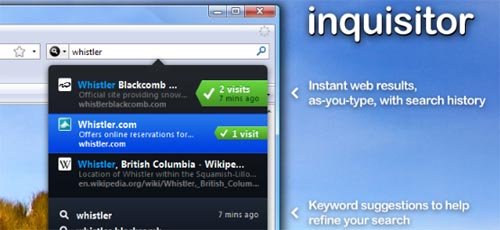
    InquisitorInquisitor speeds up your searches like no other. Start typing and websites appear instantly, along with suggestions to help refine your search. Inquisitor understands you, learning and tailoring your results as you search more.

    Hide Navigation Bar

    Hide Navigation Bar

    This extension enables you to hide the navigation bar through a toggle button. Currently the toggle button is the F2 key. You can change the key in the extensions options, as well as configure whether you want the Navigation Bar to be displayed on an initial Firefox launch. Also allows you to enable an Auto-Hide mode if you wish to use that instead.

    ScribeFire Blog Editor

    ScribeFire Blog Editor

    ScribeFire is a full-featured blog editor that integrates with your browser and lets you easily post to your blog. You can drag and drop formatted text from pages you are browsing, take notes, upload images, and post to multiple blogs.

    Interclue

    Interclue

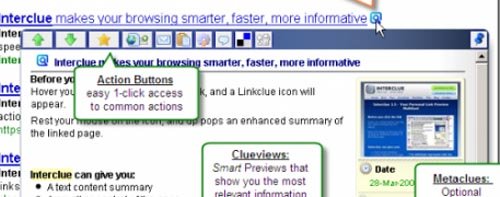
    Ever wanted to know what was behind the link before you clicked? Interclue tells you everything you need to know before you open yet another tab.

    Evernote

    Evernote

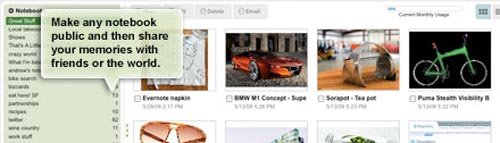
    This will Provides a button and context menus to easily add a selection or an entire page to Evernote. It can works on Windows, Mac & Linux.

    Glubble for Families

    Glubble-for-Families

    Glubble evolves the web from a personal activity into a fun experience for the whole family. Parents and children connect, play, discover and learn through fun activities. A family page, games, chat, surfing, play art, educational exercises and more.

    Fotofox

    Fotofox

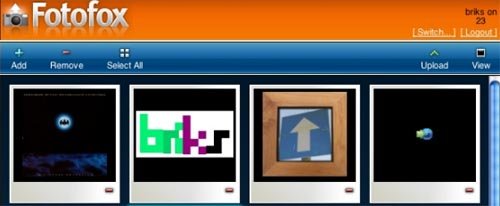
    You can easily select, tag, title and upload pictures from your computer to an online photo service. It will works with Flickr, Tabblo, 23hq, SmugMug, Marela, Kodak EasyShare Gallery, Pixelpipe, and Zooomr.

    Cooliris

    Cooliris

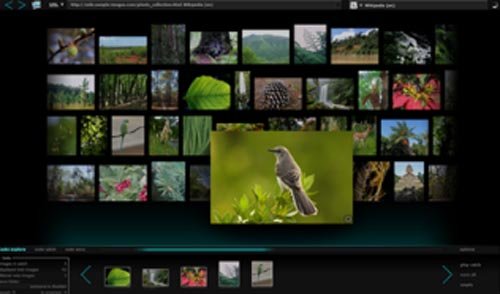
    Cooliris (formerly PicLens) transforms your browser into a visually stunning, lightning fast way to search, discover, view and share online photos, videos and more. Their unique “3D Wall” lets you effortlessly zoom your way around thousands items on a single, ever-expansive wall. It’s the fastest way to search and enjoy Google Images, YouTube, Flickr, Hulu, and hundreds of other sites.

    Foxmarks Bookmark Synchronizer

    Foxmarks Bookmark Synchronizer

    If you use Firefox on more than one computer, you’ll want Foxmarks. Install Foxmarks on each computer, and it works silently in the background to keep your bookmarks and (optionally) passwords synchronized. Foxmarks also keeps your data backed up and safe from computer failures. If you’re away from your computer, Foxmarks allows you to access your bookmarks online by logging into my.foxmarks.com.

    Fast Dial

    Fast Dial

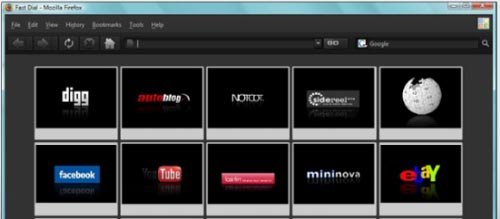
    Fast Dial replaces blank tabs with a panel of thumbnails of your favorite sites. Fast Dial bookmarks are stored as Firefox bookmarks. Thus it’s possible to manage Fast Dial bookmarks using Firefox Bookmark Manager and Bookmark Sidebar.

    Yoono

    Yoono

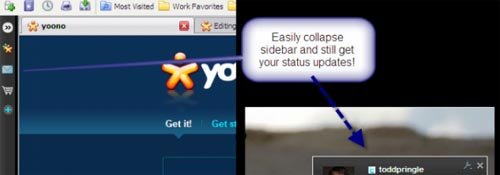
    Yoono simplifies your social life on the web by centralizing all your social networks and instant messaging in one easy to use browser sidebar. Get all your friend updates automatically wherever you are on the web and update your status instantly across Facebook, MySpace, Twitter, and more.

    Shareaholic

    Shareaholic

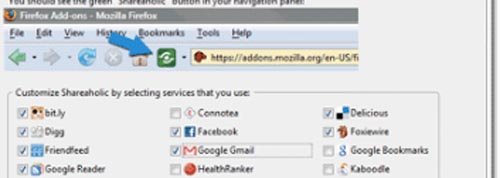
    If you use sites like Facebook, MySpace, Digg, Gmail, Twitter you’ll want Shareaholic. Winner of the Extend Firefox contest, Shareaholic enables you to quickly, and very easily share, bookmark, and e-mail web pages via a wide array of your favorite web 2.0 social networking & bookmarking sites — such as Digg, Facebook, Gmail, MySpace, StumbleUpon, and many many others.

    NoScript

    NoScript

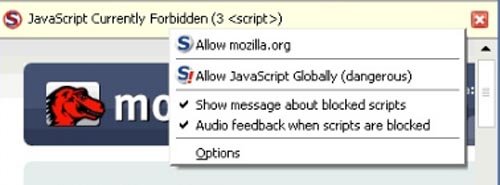
    The best security you can get in a web browser.It allow active content to run only from sites you trust, and protect yourself against XSS and Clickjacking attacks.

    DownThemAll

    DownThemAll

    DownThemAll is all you can desire from a download manager. It features an advanced accelerator that increases speed up to 400% and it allows you to pause and resume downloads at any time.

    Power Twitter

    Power Twitter

    Power Twitter adds features to the Twitter Web interface including displaying Flickr photo and YouTube videos. TinyURL links are also unwound to show the destination page title. Finally, any additional social information (blogs, photos, etc.) that match for the Twitter user are displayed in a news feed in the side bar of the Twitter page.

    Toggle Private Browsing

    Toggle Private Browsing

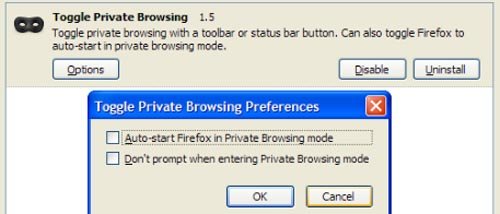
    Toggle Firefox’s built-in private browsing mode with a toolbar or status bar button. You can also toggle Firefox to auto-start in private browsing mode.

    OutWit Images

    OutWit Images

    OutWit Images allows users to quickly navigate through Web pages and search engine results to harvest countless images automatically or manually. It is a free Firefox 3 add-on compatible with Windows, Mac OS, and Linux. OutWit Images distinguishes itself by allowing users to easily save the pictures onto their hard disk while they browse through the results.

    Juice

    Juice

    Juice by Linkool Labs is an intelligent discovery engine that integrates seamlessly with your browser. Highlight and move a chunk of text, and Juice directly delivers a set of rich, relevant content (e.g. news, blog posts, photos, videos etc.) to a sidebar area of your browser. You can bookmark and organize your content for current or time-shifted consumption.

    TooManyTabs

    TooManyTabs

    TooManyTabs allows you to store up to over 50 tabs in multiple extra rows in your browser by a simple click. It saves your browser’s space and memory as idle tabs are put aside. The extra rows also help to better prioritize and visualize your tabs.

    Sxipper

    Sxipper

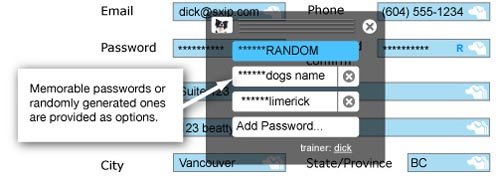
    Sxipper makes interacting with the Web simpler by keeping track of an unlimited number of usernames, passwords and personal information such as name, address, phone numbers, etc. Presented as you need it, Sxipper securely stores this personal data on your computer.

    Read rest of entry

    waspada facebook anda di blokir

    Bagi anda seorang Fesbukholic mungkin sangat menyenangkan punya banyak teman, terus banyak juga yang kasih komentar di wall atau di status update anda. Sampai-sampai anda merasa bahwa facebook telah menjadi bagian dari kehidupan anda. Tapi…. Bagaimana rasanya bila tiba-tiba anda mendapat email pemberitahuan kalau profil facebook anda dibanned/diblokir atau disuspend hingga anda tidak bisa mengakses facebook anda.

    Wah…wah… mungkin akan sangat menyedihkan bila anda harus kehilangan teman-teman di Facebook, kehilangan pesan-pesan penting yang anda simpan di Facebook, dan kehilangan semua comment, wall post, sampai group anda. Nah untuk menghindari profil anda di ban atau diblokir, sebaiknya anda ketahui hal-hal kecil yang sepertinya sepele tapi bisa membuat profil facebook anda diban alias diblokir.

    1. Nama Palsu. Yups… sepele kan? Apalah arti sebuah nama? Satu hal yang perlu ingat jangan pernah mempergunakan nama palsu apalagi yang berbau “trade merk” sebuah produk, selebritis atau hal-hal yang sifatnya melanggar hak cipta seseorang. Begitu Facebook mengetahui (karena ada yang komplain atau melaporkan) kalau profil anda menggunakan nama yang melanggar hak cipta, atau meniru-niru seseorang, bersiap-siaplah kehilangan profil fesbuk anda.

    2. Posting terlalu banyak di Wall orang lain, atau di Wall Group atau bahkan di Wall anda. Karena anda baru jadian dengan sang pacar yang kebetulan juga punya fesbuk, maka andapun tak henti-hentinynya (hampir tiap menit) menulis di Wall sang pacar. Mengungkapkan rasa sayang dan cinta sih tidak ada yang melarang, tapi kalau anda harus memenuhi Wall sang pacar dengan ungkapan hati anda, maka andapun mesti bersiap-siap kehilangan fesbuk anda.

    3. Teman Anda terlalu banyak. Rumor mengatakan bahwa batas maksimum friend di Facebook adalah 5.000 orang, nah untuk menghindari agar fesbuk anda tidak diban, sebaiknya batasi jumlah friends anda jangan sampai melebihi dari batas yang diperolehkan oleh Facebook. Lagian, terlalu banyak friends akan membuat anda tidak fokus dan bahkan cenderung membahayakan anda, so… sebuah ungkapan kecil mungkin berguna “better be alone than in a bad company” itu artinya lebih baik kita punya teman sedikit tapi bisa saling mengenal satu sama lain, daripada punya teman banyak, tapi hanya sekedar penghias statistik dan tidak saling kenal sama sekali.

    4. Poke yang berlebihan. Tadinya sih anda ingin memberikan perhatian pada semua orang, kalau anda peduli sama mereka. Tapi dengan memberikan Poke yang berlebihan dan tidak beraturan, jangan heran bila suatu hari anda tidak bisa login pada fesbuk anda.

    5. Copy Paste. Karena ingin mempermudah membalas message atau wall ke teman-teman, anda memilih copy paste dari kata-kata atau kalimat yang ingin anda sampaikan. Jangan pernah lakukan hal seperti ini, memberikan message atau wall dengan kata-kata atau kalimat yang sama persis dan terus berulang-ulang akan membuat anda disangka sebagai seorang Spammer, dan besar kemungkinan fesbuk anda bakal disuspended.

    6. Terlalu banyak bergabung dengan Group. Jangan sekali-kali anda bergabung dengan berbagai macam group, limit maksimum dari group yang diperbolehkan untuk anda bergabung sekitar 200 group. Jadi kalau saat ini telah bergabung dengan lebih dari 200 group, bersiap-siaplah untuk kehilangan fesbuk anda.

    7. Menulis hal-hal berbau sara, rasis, penghinaan, atau sikap permusuhan entah itu wall, status update atau message

    Untuk lebih lengkapnya hal-hal yang bisa membuat facebook anda di blokir anda bisa melihatnya di Term sFacebook
    Read rest of entry

    mempercantik blog dengan CSS

    tips mempercantik dan blog dengan menggunakan CSS atau kepanjangan dari Cascading Style Sheet, secara singkat fungsi dari CSS ini untuk mengatur tampilan suatu dokumen yang ditulis dengan bahasa markup, seperti tata letak, font, color, image dan lain-lain.

    Sebetulnya tips mempercantik blog ini terlahir karena adanya pertanyaan dari teman sesama blogger, dia menanyakan kenapa setiap image atau gambar yang berada di blog saya ketika di hover [didekati] sama mouse maka warnanya akan berubah menjadi sedikit transparan? Jawabannya karena saya menggunakan CSS untuk mengubah transparansi gambar tersebut.

    Trik mempercantik blog dengan CSS ini bisa dipraktekan di Wordpress dan Blogspot dan caranya sangat gampang sekali, kita cuma membutuhkan script CSS dibawah ini :

    Untuk Wordpress langkahnya sebagai berikut masuk ke Dashboard pilih Appearance pilih Widgets dan terakhir copy bulat-bulat script CSS diatas di Text-nya masing-masing, saran saya digabung dengan widget text yang lain misal shoutmix atau chatbox.

    Untuk Blogspot tekniknya hampir sama dengan Wordpress yakinkan log in ke dashboard-nya masing-masing, masuk ke pengaturan halaman atau layout di page elements gabung saja script CSS diatas dengan gadget yang berformat html/javascript misalnya shoutmix atau chatbox. Sebagai contoh untuk melihat efek transparannya coba hover image yang ada dalam paragraph ini.

    Tentunya semakin cantik atau semakin kreatif blog kita akan membuat pengunjung jadi betah berlama-lama menikmati suasana blog kita, dan tidak menutup kemungkinan sebagai awal untuk meningkatkan jumlah pengunjung dan akhirnya akan memperbaiki rank alexa blog kita.

    Read rest of entry

    aplikasi facebook yang patut di coba

    Sepertinya tahun 2009 ini adalah musimnya Facebook.Bagaimana tidak makin hari jumlah anggotanya selalu bertambah.Nah,bagi anda yang gila dengan facebook harus menciba aplikasi-aplikasi ini.

    1. Facebook Toolbar (http://developers.facebook.com/toolbar/)
    Facebook Toolbar memiliki kotak pencarian, pemberitahuan, sebuah ikon yang dapat digunakan untuk memeriksa gambar teman-teman anda dan statusnya.

    2. Simple Photo Uploader
    (http://code.google.com/p/fb-photo-uploader/wiki/FacebookOverview)
    Simple Photo Uploader adalah sebuah aplikasi desktop untuk facebook yang dapat membantu anda meng-upload foto dengan mudah.
    Simple Photo Uploader juga memberikan kemampuan untuk menandai foto.

    3. FacePad (https://addons.mozilla.org/en-US/firefox/addon/8442)
    Facepad adalah add-ons firefox yang memungkinkan anda men-download teman facebook dan acara album.

    4. Advanced Wall (http://www.facebook.com/apps/application.php?id=3118555174)
    Daripada memposting pesan melalui pilihan default, Advanced Wall dapat memposting foto, gambar, graffiti, video, flash, mengubah ukuran teks dan warna, bersama dengan banyak hal-hal lain yang sederhana dengan menggunakan editor WYSIWYG.

    5. Facebook Mobile (http://www.facebook.com/mobile/)
    Facebook Mobile adalah aplikasi yang digunakan oleh banyak pengguna.
    Memberikan anda kemampuan untuk meng-upload foto dan catatan dari kamera telepon langsung ke Facebook.

    6. ScrapBoy (http://www.scrapboy.com/en/downloads/)
    ScrapBoy adalah sebuah aplikasi desktop untuk aplikasi facebook yang dapat digunakan untuk melakukan hampir segala sesuatu yang berkaitan dengan facebook.
    Dengan fitur seperti menulis posting dinding, melihat foto atau Facebook chatting, melihat ‘dinding’ beberapa teman-teman, album foto dan jendela obrolan pada saat yang sama dan yang lainnya.

    7. Graffiti (http://apps.facebook.com/graffitiwall/)
    Graffiti adalah aplikasi berbasis facebook yang dapat digunakan untuk menggambar pada dinding teman-teman anda.

    8. Task Master (http://apps.new.facebook.com/todolist/)
    Task Master memungkinkan Anda mengelola tugas-tugas anda di facebook secara lebih efisien.

    9. Friends Organizer (http://apps.facebook.com/friendsorganizer/)
    Friends Organizer adalah nifty aplikasi yang dapat digunakan untuk mengurutkan daftar kontak Anda ke dalam grup, seperti schoolfriends, teman-teman kerja, teman-teman media sosial dll.

    10. Last.Fm Music (http://apps.facebook.com/lastfmmusic/)
    Last.Fm Music adalah aplikasi musik untuk semua orang-orang yang suka musik dan tentunya Last.fm.
    Anda dapat membandingkan musik Anda dengan teman-teman, mendengarkan lagu mereka, dan menempatkan kotak dari artis dan album foto pada profil Anda.
    Read rest of entry

    upgrade segera joomla kamu

    joomla.org

    joomla.org

    The Joomla Project mengumumkan tentang ketersediaan Joomla versi 1.5.11. Ini merupakan rilis keamanan dan pengguna sangat dianjurkan untuk upgrade sesegera mungkin.

    Rilis ini berisi 26 bug yang telah diperbaiki. Sudah 11 minggu sejak Joomla 1.5.10 dirilis pada tanggal 28 Maret 2009.

    Untuk mendownload Joomla 1.5.11 Full Package silakan klik disini »

    Read rest of entry

    gerakan anti PSA Google Adsense

    Public Service Ads (PSA) Google Adsense! sering muncul, bahkan selalu muncul bagi blog dengan artikel atau content menggunakan bahasa indonesia. Ini akan menyebakan $ 0 untuk setiap kliknya, capek-capek pasang iklannya tapi tidak ada imbalannya untuk anda. Mungkin hal ini bisa diatasi dengan menambahkan ” google_language = “en”; ” pada script iklan google adsense, cara ini adalah ilegal, jika ketahuan sama Mbah google akan menyebabkan anda akan dikirim surat cinta, alias email konfirmasi banned dari google, atau paling ga domain anda akan di banned/disable.

    Berikut sedikit tips untuk blog dengan content bahasa indonesia

    1. Pasanglah iklan dari ppc lokal. Misal : Kombes Publishers, Registrasi disini!
    2. Pasanglah kode iklan di menyatu dengan content anda. Atau bisa juga diatas content atau pada side bar.
    3. Naikklah tarffic blog anda, sedikit tips untuk hal ini, submit semua content anda ke situs sosial bookmarking Misal LintasBerita.Com, InfoGue.Com, Astaga.Com
    4. Update content blog anda minimal 2 hari sekali.

    Untuk pengguna wordpres pastikan anda sudah mengaktifkan Permanentlinks, dan plugin-plugins berikut sudah terinstall : All in SEO Pack, XML-Sitemap, Multi Url Ping, Related Posts, Dll

    Selain tips diatas anda juga bisa menerapkan SEO
    Read rest of entry
     

    Twitter Updates

    Follow This Blog